Technology Calculator
Storage Unit Converter
Convert between bytes, KB, MB, GB, TB, and PB. Uses binary (1024-based) conversion.
Enter Values
Calculator loading
The guide, formula, examples, and FAQ are available below.
How to Use This Calculator
Enter Value
Type your value into the input field. For example: e.g., 500. Minimum value: 0.
Select From Unit
Choose the appropriate option from the "From Unit" dropdown. Options include: Bytes, KB, MB, GB, TB, PB.
Select To Unit
Choose the appropriate option from the "To Unit" dropdown. Options include: Bytes, KB, MB, GB, TB, PB.
View Your Result
The result appears beside the calculator with the main answer and a detailed calculation breakdown.
Adjust and Explore
Change any input value and calculate again. Use the copy and share controls to save or send your result.
On this page
Formula
Each unit is converted to bytes using binary (base-1024) conversion, then divided by the target unit. 1 KB = 1024 bytes, 1 MB = 1024 KB, and so on.
Calculation methodology
This calculator uses the formula shown on the page and checks common edge cases before returning a result.
Examples and FAQs are included to explain assumptions, limitations, and practical use cases.
Source and review references
Last reviewed by the Calculator Trust Editorial Team. To report an issue, email contact [at] calculatortrust.com.
Common Examples
Understanding the Concept
Digital storage can be confusing when dealing with different units. Whether you are comparing hard drive sizes, calculating cloud storage needs, or understanding file sizes, this converter makes it easy to translate between bytes, kilobytes, megabytes, gigabytes, terabytes, and petabytes using the standard binary (1024-based) system.
Binary vs. Decimal Storage Units
There are two standards for storage unit conversion that often cause confusion:
- Binary (base 1024): Used by operating systems and this calculator. 1 KB = 1,024 bytes, 1 MB = 1,048,576 bytes. These are sometimes written as KiB, MiB, GiB to be precise.
- Decimal (base 1000): Used by storage manufacturers. 1 KB = 1,000 bytes, 1 MB = 1,000,000 bytes.
This is why a 1 TB hard drive shows about 931 GB in your operating system. The manufacturer uses decimal (1 trillion bytes), but the OS displays it in binary gigabytes.
Common Storage Sizes in Context
Understanding what each storage unit means in practical terms:
- 1 MB: About 1 minute of MP3 music, or a short email with attachments
- 1 GB: About 250 MP3 songs, or 20 minutes of HD video
- 1 TB: About 250,000 photos, or 500 hours of HD video
- 1 PB: About 1,000 TB — enough for over 13 years of continuous HD video
The History of Digital Storage Units
The story of digital storage units is intertwined with the history of computing itself. Early computers in the 1940s and 1950s stored data on punch cards, magnetic drums, and mercury delay lines, measured in individual bits and bytes. The term "byte" was coined in 1956 by Werner Buchholz while working on the IBM Stretch computer. He chose a spelling different from "bite" to avoid accidental confusion with "bit" in documentation.
As storage grew, the computing industry borrowed metric prefixes — kilo, mega, giga — but used powers of 2 instead of powers of 10 because binary arithmetic is fundamental to how computers work. One kilobyte became 1,024 bytes (2 to the 10th power) rather than 1,000 bytes. This was a minor rounding difference at small scales, but the gap widens dramatically at larger units. A "gigabyte" in binary (1,073,741,824 bytes) is nearly 7.4% larger than a decimal gigabyte (1,000,000,000 bytes).
In 1998, the International Electrotechnical Commission (IEC) introduced new prefixes — kibi, mebi, gibi, tebi — specifically for binary multiples, hoping to resolve the confusion. However, most software and everyday usage still refers to KB, MB, and GB without clarifying which standard applies. This mismatch between manufacturers and operating systems remains one of the most common sources of confusion in consumer technology.
How to Estimate Your Storage Needs
Choosing the right amount of storage depends on what you plan to store. Here are practical guidelines for common use cases:
- Light users (email, documents, web browsing): 128-256 GB is typically sufficient. Office documents, spreadsheets, and presentations are small — you could store over 100,000 Word documents in 10 GB.
- Photo enthusiasts: A single RAW photo from a modern camera is 25-50 MB. If you shoot 200 photos per week, that is about 500 GB per year. Plan for 1-2 TB if photography is a serious hobby.
- Gamers: Modern AAA games range from 30 GB to over 150 GB each. If you keep 10-15 games installed, you will need at least 1 TB of fast SSD storage, and 2 TB is more comfortable.
- Video editors: A single hour of 4K footage at a common codec is roughly 45 GB. Professional editors working with multiple projects simultaneously often need 4-8 TB of fast storage plus additional archival storage.
- Music collectors: A typical MP3 album is about 100 MB, while a lossless FLAC album is 300-500 MB. Even a large library of 5,000 albums in FLAC format would fit on a 2 TB drive.
A good rule of thumb: estimate your current usage, project growth for 2-3 years, and buy at least 50% more than your projected need. Storage fills up faster than most people expect, and upgrading later is more expensive than buying adequate capacity upfront.
Storage Types and Their Performance
Not all storage is created equal. The type of storage affects not only capacity but also speed, durability, and cost per gigabyte:
- HDD (Hard Disk Drive): Traditional spinning disks offering large capacities (1-20 TB) at the lowest cost per GB, typically $0.02-0.04 per GB. Read/write speeds of 100-200 MBps. Best for mass storage and backups where speed is not critical.
- SATA SSD: Solid-state drives using the older SATA interface. Speeds reach 500-550 MBps — about 3-5 times faster than HDDs. Prices run $0.06-0.10 per GB. A good balance of speed and value for general computing.
- NVMe SSD: Modern SSDs using the NVMe protocol over PCIe lanes. Sequential read speeds of 3,500-7,000 MBps make these 7-14 times faster than SATA SSDs. Prices are $0.08-0.15 per GB. Essential for video editing, large file transfers, and reducing software load times.
- Cloud storage: Services like Google Drive, Dropbox, and iCloud provide off-site storage accessible from any device. Costs range from free (5-15 GB) to $10-20/month for 1-2 TB. Speed depends on your internet connection rather than the storage hardware.
For most people, the ideal setup combines an NVMe SSD (500 GB to 1 TB) for the operating system and frequently used applications with a larger HDD (2-4 TB) or cloud storage for archives, photos, and media collections.
Common Mistakes When Managing Digital Storage
Managing storage effectively requires avoiding a few common traps that waste space or lead to data loss:
- Never keeping backups: About 30% of computer users have never backed up their data. A single drive failure can erase years of photos, documents, and memories. Follow the 3-2-1 rule: keep three copies of important data, on two different types of media, with one copy stored off-site or in the cloud.
- Ignoring duplicate files: Over time, duplicate photos, downloads, and document versions accumulate and can waste 10-20% of your total storage. Free tools like dupeGuru or built-in features in cloud storage services can identify and remove exact duplicates safely.
- Filling drives beyond 90% capacity: Both HDDs and SSDs perform poorly when nearly full. HDDs need free space for defragmentation, while SSDs need empty cells for wear leveling and garbage collection. Aim to keep at least 10-15% of any drive free for optimal performance and longevity.
- Confusing marketing capacity with usable space: A new 512 GB SSD typically provides about 476 GB of usable space after formatting, and the operating system plus pre-installed software may consume another 20-40 GB. Your actual available space on a "512 GB" drive is often closer to 440 GB.
Frequently Asked Questions
Why does my hard drive show less space than advertised?
What is the difference between KB and KiB?
How many GB is a TB?
What comes after petabytes?
Is 1 GB equal to 1000 MB or 1024 MB?
How much storage do I need for a phone?
Does formatting a drive reduce its capacity?
What is the difference between SSD and HDD storage?
Learn More
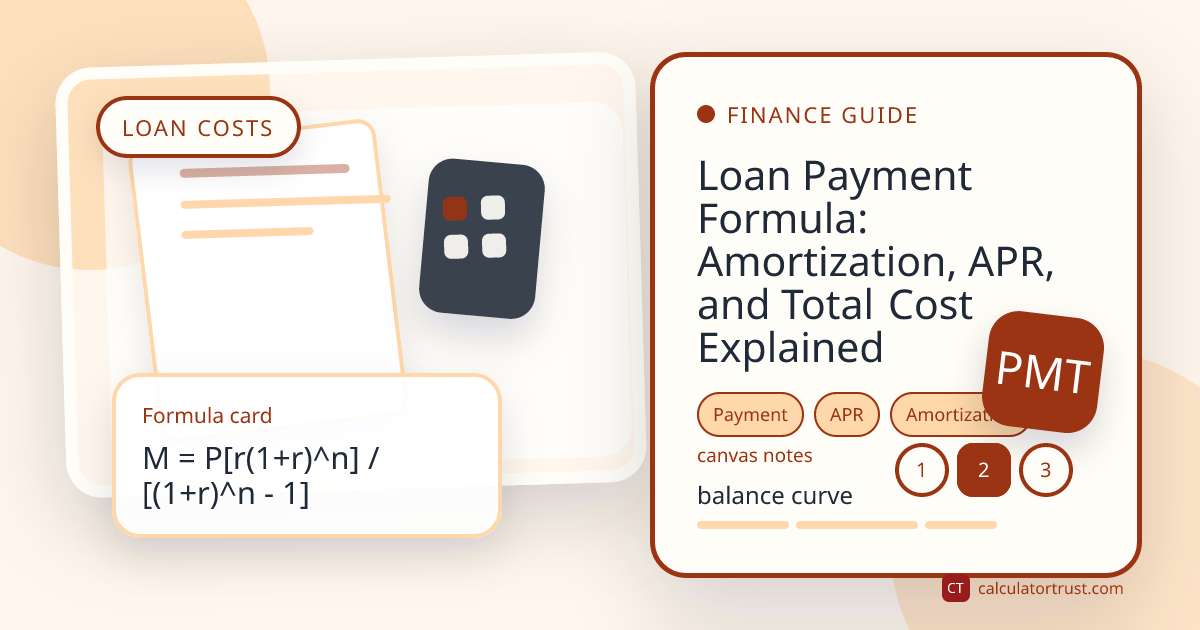
Loan Payment Formula: Amortization, APR, and Total Cost Explained
Learn how loan payments are calculated, how amortization changes principal and interest over time, and how APR, term length, and extra payments affect total cost.
Read Article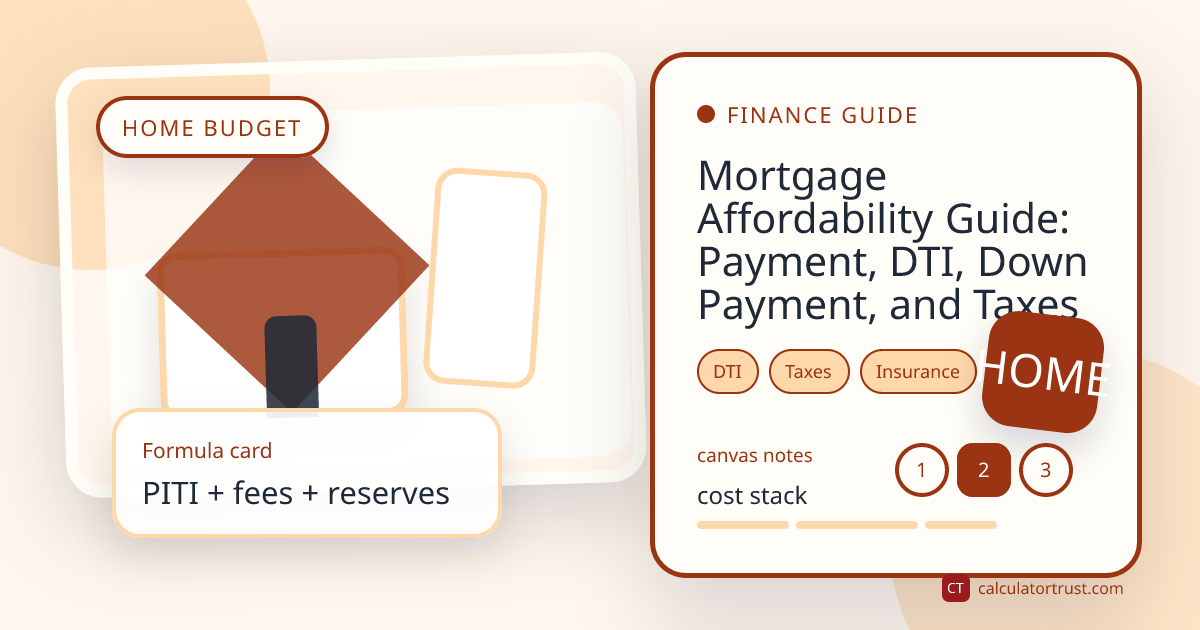
Mortgage Affordability Guide: Payment, DTI, Down Payment, and Taxes
A practical guide to estimating mortgage affordability with principal, interest, taxes, insurance, down payment, debt-to-income ratio, and cash reserves.
Read ArticleWritten and reviewed by Calculator Trust Editorial Team
Our calculators are built using verified formulas from academic, government, and scientific sources. Content is fact-checked and reviewed for accuracy.